 Introduction to Microsoft Access
Topic 1 - Introduction to Databases
1.1 "Housekeeping" Notes
1. Class is from 6:30 - 8:30 Thursday nights, 7 weeks
2. Break, Bathrooms, Parking, Smoking
3. Snow/weather cancellations
4. Try to keep the same seats
5. Internet site for notes (http://www.geocities.com/accessdatabase)
6. Likely there are other methods to do things in this class
7. User Name, Password
8. Text Suggestions
9. Bring questions/projects to share
10. Contracting - web design and deployment, data management, training,
1.2 Course Introduction
1.2.1 What's your experience with Access and what do you want to use Access to accomplish?
1.2.2 What is a database?
(Help File Definition) A database is a collection of information related to a particular subject or purpose, such as tracking customer orders or maintaining a music collection.
A database is a list, but it's more. It's a collection of data that can be related. You can use a database not only to store data, but to retrieve and sort specific data that meets certain criteria, perform operations and actions to data, and display data in various formats.
If your database isn't stored on a computer, or only parts of it are, you may be tracking information from a variety of sources that you're having to coordinate and organize yourself.
1.3 Introduction to Access
1.3.1 What is Access?
It is a relational database program, that is a member of the Microsoft Office family of programs. Using Microsoft Access, you can manage all your information from a single database file
Within the file, divide your data into separate storage containers called tables; view, add, and update table data using online forms; find and retrieve just the data you want using queries; and analyze or print data in a specific layout using reports.
1.3.2 What's wrong with Excel and why use Access instead?
Excel is an example of what's called a flat file database. Databases using excel are two dimensional, made of rows and columns.
The PetFoodDonations.xls spreadsheet is an example of using Excel as a database. The columns hold information regarding the attributes of each donation, for example the date and the amount of the donation. The rows contain information about each specific donation.
Excel can be a very good way to store information or lists. It is simple to use. It is very compatible with other Microsoft Office "family members" (like Microsoft Word). And it has powerful filtering and sorting functions.
But Excel and flat file databases have limitations. To illustrate, think of what you would have to do if one of the donators changed their address. You would have to change the address in every row that involved that donator. You might be able to do a find and replace operation on the entire spreadsheet, but there are cases that wouldn't work. For example if there were two donators located in Saratoga Springs and one moved to Ballston Spa, a find and replace operation would change all the Saratoga Springs entries in the city column to Ballston Spa - not just the ones you wanted to change.
That's where Access, and relational databases, come in. In Access you use two or more flat file type lists or databases and relate the two lists to each other. You'll see what I mean in the next section, A Quick Tour of Access.
The following are some of the advantages of using Access over Excel (or other spreadsheet program):
1. Efficiency - just have to enter the relation code instead of all the information
2. Decreases the possibility of errors
3. Easy to perform updates (like change of address)
4. Stores all information (tables, queries, reports, etc) in one file
5. Allows data integrity (eg entering a DonorID that isn't in the Donors table)
6. Allows data validation - check data before you continue (eg require a date range)
7. Saves disk space by eliminating redundant data
8. Powerful querying functions- can just display the fields/information you want
9. Powerful reporting functions
10. You don't have to anticipate the need for potential reports
11. don't need to have extra (blank) cells for anticipated data
1.4 Quick Tour of Access Objects to show what you can do with Access
1.4.1 Access 2007 Security Warning
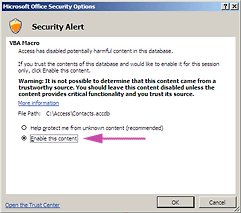
When you open a database with Access 2007 you will see this secirity warning:

Click on the Options button. If you are sure that the database is from a safe source, you can click the Enable this content option button, then click th OK button.
1.4.2 Access Window Parts (menu bar, tool bar(s))
Just like other Windows programs, Access has a menu bar and tool bars. Both of these bars will change depending what you are doing in Access. Through out the course I will be showing how to do things using various menu items and/or tool bar buttons.
1.4.3 The Database Window
The Database Window is the tabbed window that is usually the first thing to show when you open or create an Access database. It is an easy, user-friendly tool to navigate and view or work on the Access objects. There is a separate tab for each type of Access object - tables, queries, forms and reports, for example.
If the Database Window is not showing - you can make it show by pressing the F11 key on the keyboard.
You can open the Access object by double clicking on it or by single clicking on it and then clicking on the Open button.
Access 2007
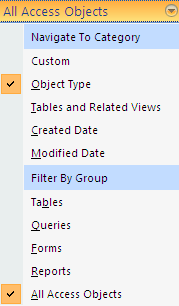
The Navigation Pane replaces the Database Window in Access 2007. For this class, select "Object Type" in the Navigate to Category group and "All Access Objects" in the Filter by Group group.
You click on the Shutter Bar button
to hide or display the Navigation Pane.
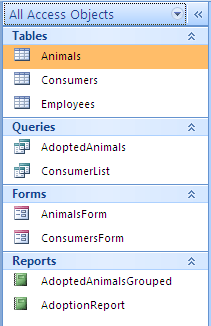
When the Navigation Pane displays, you can see the Access objects that are part of the open database.
1.4.4 Tables
Tables are the fundamental building blocks of an Access database. They look like spreadsheets or flat file databases and are made of rows and columns. Each table is a like a separate spreadsheet.
In the PetFoodDonations database there are two tables - the Donations table and the Donators table.
1.4.5 Forms
Access lets you create your own forms. One of the main uses of forms is to create a user interface that makes it easy to enter data into your database. Instead of entering data into a spreadsheet style table, you can create a form to enter data.
In the PetFood Donations database there is one form, the DonationsForm form.
1.4.6 Queries
In Access, you can use queries to manipulate the data in your database. Some things you can do with queries are combining data from more than one table, and filtering and sorting data.
In the PetFood Donations database there is one query, the DogFoodDonations query.
1.4.7 Reports
Access includes a built in report writer that lets you create printouts, or reports, of data in your database. Reports can also be letters that retrieve data from the database.
In the PetFood Donations database there is one report, the DonationsReport report. This is a spreadsheet style report, but as you will see later, Access does not limit you to just that style.
1.5 Getting Help
1. Access Help File - Contents, Index and Find tabs
2. The Northwind sample database - usually located at:
C:\Program Files\Microsoft Office\Office\Samples\Northwind.mdb
3. The Office Assistant
Access 2007
Press the F1 key to open the Help Window.
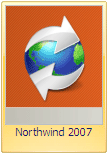
You have to create the Northwind Traders sample database from the available templates. It is included in the local templates. Click on the Northwind 2007 image and Access prompts you for a location to save it. Access creates the sample and then you can open it from the saved location.
1.6 Notes
1.6.1 Note that Toolbars and Menus change, depending on what you're working on
1.6.2 Access Versions - (1.0, 1.1, 2.0, Access95, Access97, Access2000, XP, 2003, 2007)
1. For using concepts from this course, all versions from 2.0 are okay. However, there are compatability issues (especially backwards).
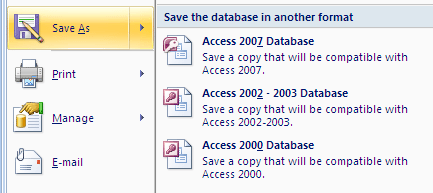
2. Converting to different versions
Access 2007
Click on the Office Button/Save As and then choose the desired version.
1.7 Beyond "Introduction to Microsoft Access"
1.7.1 About Microsoft Access
Microsoft Access is very powerful program that lets you create advanced custon solutions. This course is an introductory course and only covers the tip of the Microsoft Access iceberg.
1.7.2 Example of an Access Application - "Continuing Ed" Example
You can use Forms in Access to create a user interface and custom application that doesn't look anything like Access.