Introduction to Microsoft Access
Topic 3 - Creating Tables
3.1 Definitions
Table
Record
Field
3.2 Creating a Table
- select the Tables tab of the Database window
- click the New button
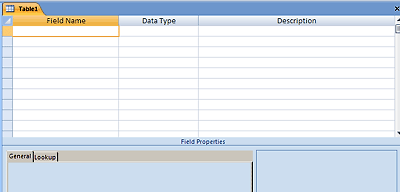
- open in Design ViewThis opens the Table Design window. You enter field names in the upper half and field attributes in the bottom half.
You have to choose a field's data type. The most common data types are text, number, date/time, yes/no, currency, memo, and autonumber.
Plan out your data, write out a field list before you start
(1) Separate fields into the smallest logical parts
(2) No calculated fields
(3) Fields relate to the subject of the table
Access 2007
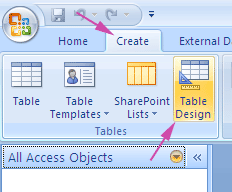
Create a new table by clicking on the Create tab of the Office 2007 ribbon and click the Table Design button.
This creates a new table and displays the table design grid.
3.3 Text Data Type
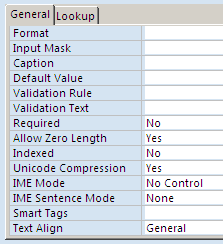
Text includes letters, numbers, symbols, or any combination of them.
Attributes - Field Size, Default Value, Validation Rule, Validation Text
Access 2007

3.4 Number Data Type
3.4.1 Number Field Sizes
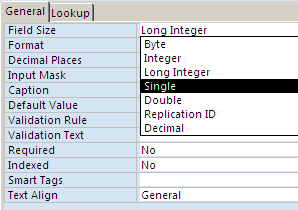
Integer Field Size (-32,768 to 32,767)
Long Integer Field Size (-2,147,483,648 to 2,147,483,647)
Single Field Size (approx: -3.40E38 to 3.40E38)
Double Field Size (approx: -1.79E308 to 1.79E308)
3.4.2 Other Number Attributes
- Format
- Decimal Places
Access 2007

3.5 Date/Time Data Type
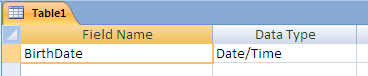
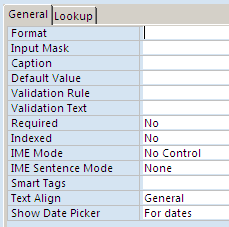
Format - choose from list or create custom format (like m/d/yy)
Access 2007
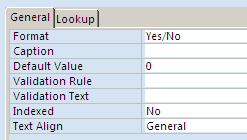
3.6 Yes/No Data Type
Formats are Yes/No, On/Off, True/False
Access 2007

3.7 Currency Data Type
3.8 Memo Data Type
Maximum 65,536 characters
3.9 Autonumber Data Type
Same as Long Integer number data type
Autonumber characteristic - the number is only available once
3.10 Creating a Primary Key
Primary Keys have two requirements:
(1) Values are unique for each record
(2) An entry is required
Access 2007
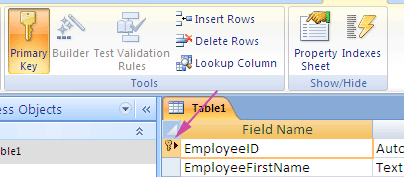
In Table Design mode, click the Primary Key button on the ribbon.
Access shows the field as primary key using the key symbol.
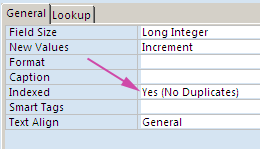
No Duplicates:

3.11 Table Names
- rules: limit 64 characters, illegal characters - Dot (.), Exclamation Point (!), Brackets ([ and])
- naming suggestions (something to indicate it's a table)
3.12 Switching Between Views
Access 2007
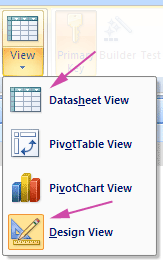
You can quickly change between views of Access objects - Tables, Queries, Forms, and Reports.
The two views we use in the class for tables are Datasheet View and Design View.
3.13 Entering Data into Tables
- type, tab to next field, tab to next record after last field
- navigation, VCR buttons
- delete record
- select record by clicking on record selector
- can select multiple contiguous records (with Shift key or dragging)
- use the Delete key or right-click and choose Delete from the pop-up menu
- WARNING - there's no undo
3.14 Modifying Tables
- add fields
- delete fields (WARNING - there's no undo)
- delete table (WARNING - there's no undo)
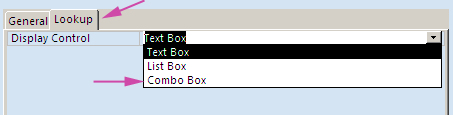
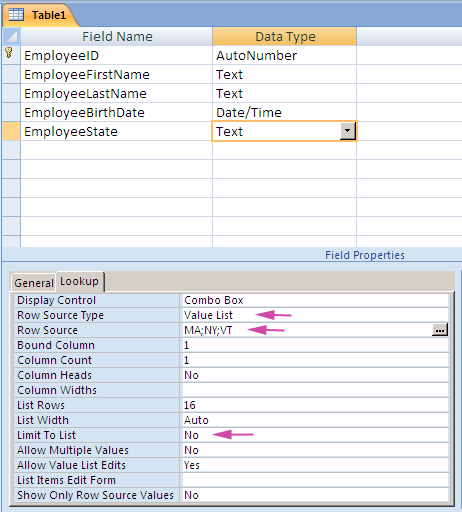
3.15 Combo Boxes, Part 1
- Part 1 - you indicate the list items in the Combo box
- (Part 2 - [later in the class] Access gets the list items from the data in the database)
- simple combo and dropdown boxes
Access 2007