Introduction to Microsoft Access
Topic 4 - Sharing Data with Excel
4.1 Introduction
Access makes it easy to import spreadsheet or other columnar data.
Exporting data works well too.
Office programs integrate well with each other.
4.2 Importing
4.2.1 Importing Data to a New Table
Access will decide the data type of each field
You may have to modify the data type Access assigned after you complete the import
Access 2007
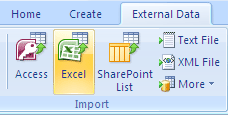
Click on the Excel button of the External Data tab of the ribbon.
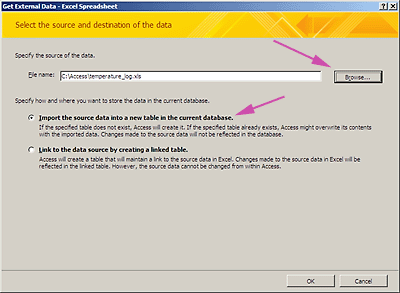
Click the Browse button to navigate to the Excel file with the data to import. Click the "Import the source data into a new table in the current database" option button. Click the OK button to open the Import Spreadsheet Wizard.
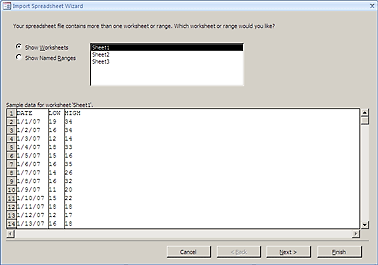
Choose the worksheet or named range to import. In the example it's "Sheet1". Click the Next button.
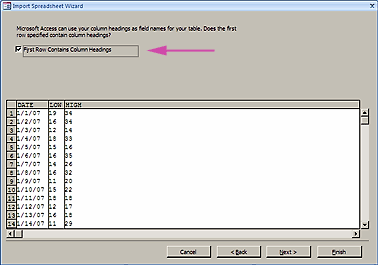
If the first row of the spreadsheet contains column headings, make sure you check that checkbox. Click the Next button.
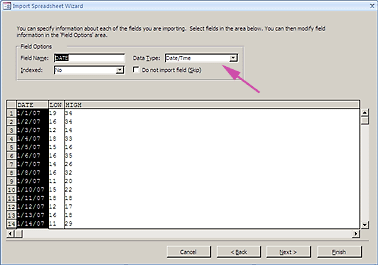
You can check the data type of each column of the spreadsheet. Click the Next button.
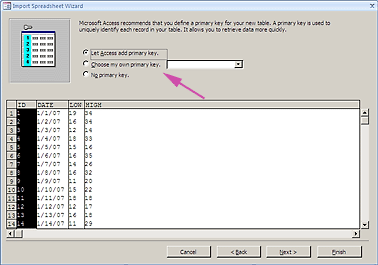
Add a primary key, if desired. Click the Next button.
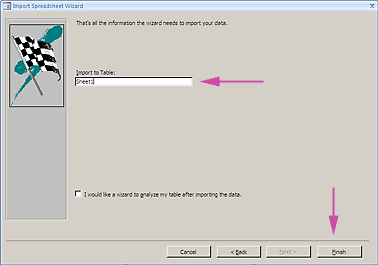
Accept the default name for the table, or give it a new name. Click the Finish button.
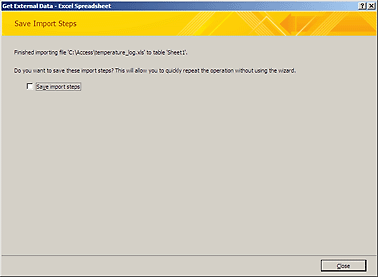
Save the import steps if this is an operation you will perform frequently. Click the Close button.
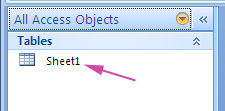
The new table appears in the Navigation Pane.
4.2.2 Importing Data to an Existing Table
Access 2007
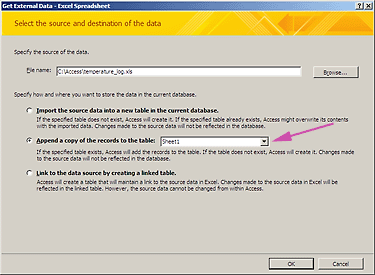
Click "Append a copy of the records to the table:" option button, choose the table, and click the OK button.
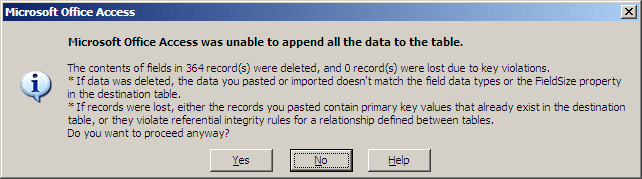
Access won't allow the import if there is any data that is inconsistent with the field's data type.
4.2.3 Pasting Data into an Existing Table
Copy and paste column dimensions must be the same
Access 2007
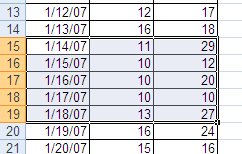
Select the Excel data to copy and paste. Copy the data.
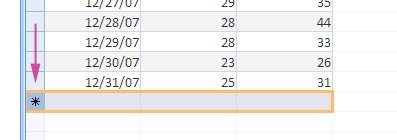
Open the destination table in Access, select the bottom row.
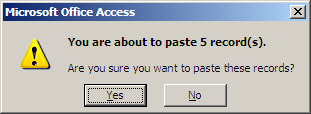
Click the Paste button. Access confirms the operation.
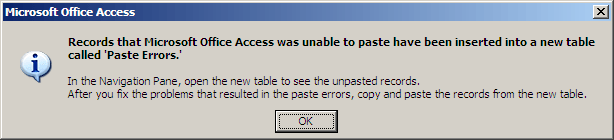
If there's data that's inconsistent with a field's data type, Access creates a "Paste Errors" table that you can use to investigate the error causing records. You can view and investigate the offending records in the Paste Errors table and make the corrections.
4.3 Exporting
4.3.1 Copy and Paste
- select individual or contiguous records or select all records
- copy
- open Excel and paste
4.3.2 Office Links
With the table in datasheet view, choose Tools/Office Links/Analyze It with Microsoft Excel
Access 2007
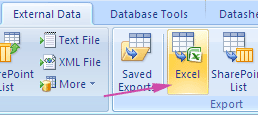
Click the Excel button in the Export group of the External Data tab of the ribbon.