 Introduction to Microsoft Access
Topic 6 - Using Access Queries
6.1 Introduction and Terms
Query Definition (from the Help file glossary)
A question about the data stored in your tables, or a request to perform an action on the data. A query can bring together data from multiple tables to serve as the source of data for a form or report.
Now that we've gone through designing and creating databases, we can finally use queries to do something with the data we've entered.
Queries can perform two basic functions - showing data and manipulating data
Creating a Query
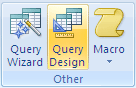
Click the Query Design button on the Create tab of the ribbon.
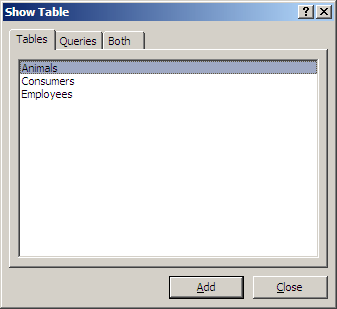
This prompts you for table(s) to add to the query, using the Show Table dialog box. Double click on a table name to add it to the query design grid (or click the table name and then the Add button).
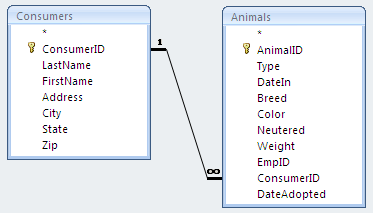
When you add related tables to the query, Access will display the relationship.
Views
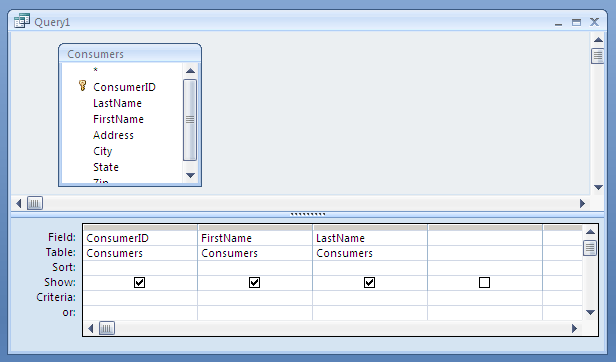
Design View - the table(s) appear in the top part of the Query Design Grid and the fields appear in the lower part.
Datasheet view
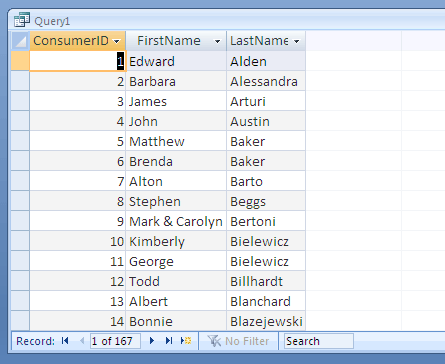
6.2 Query Functions - Show Selected Fields
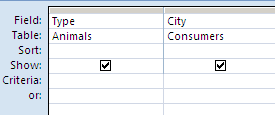
In the Query Design Grid, double-click on a field name in a table in the upper part to add it to the query fields in the bottom part.
Example: Show the Animal and City of the adopting consumer.
Other Notes
Double-click on the * symbol (at the top of a table) to add all fields from that table to the query.
Delete fields from the query by selecting the column and pressing the Delete key.
6.3 Query Functions - Sorting
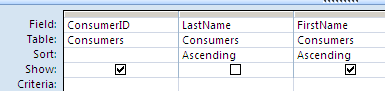
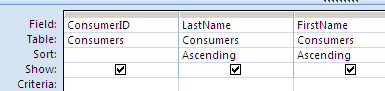
- Access sorts from left to right in the Query Design Grid. In this example, Access sorts the LastName field first, then performs a second sort of the FirstName field
- Invisible sorts - use the Show checkbox. In this example, Access performs the same sort as above but does not display the LastName field.
6.4 Query Functions - Filtering
- Using the * wildcard
Examples
(1) Last Name field - m*, *n, a*n
(2) Comparison - Last Name >= m
(3) Using OR - Last Name begins with m or s
(4) Using AND - Last Name begins with m and Zip Code 12866
(5) Using multiple OR and AND - All Last Names beginning with M and N and in Zip 12020 and 12866 (need 4 rows of criteria entries)- Invisible filters - as in section 6.3 above, you don't need to display the fields used in applying filtering criteria. Uncheck the checkbox in the Show row of the Query Design Grid.
6.5 Query Functions - Performing Mathematical Operations
6.5.1 Basic Math Operations
Addition (+)
Subtraction (-)
Multiplication (*)
Division (/)Although it's not required, use parenthesis to combine multiple operations in the same formula.
6.5.1 Some Math Functions
ABS
INT
EVEN
ODD
RAND
ROUND
6.5.2 Some Date and Time Functions
DAY
MONTH
YEAR
WEEKDAY
NOW
6.5.3 Logical Function
IIF
6.6 Query Functions - Manipulating Text
6.6.1 Concatenating Text
Use the ampersand character (&) to concatenate text strings
Spaces are characters too
6.6.2 Some Text Functions
LEFT
RIGHT
LEN
SEARCH
MID
LCASE
UCASE
PROPER
6.7 Query Functions - Any Combination of the Above Functions
6.8 Creating a Parameter Query
Use brackets in the Criteria row of the Query Design Window
6.9 Exporting Query Results
- copy and paste to Word, Excel, or other programs
- Use Tools/Office Links on the menu