Introduction to Microsoft Access
Topic 5 - Database Design and Relating Tables
5.1 Definitions and Terms (from the Help file)
Database Diagram
A diagram showing the tables, table fields and relationships between those tables. You can use Access's Relationship Window to setup and see the database diagram. (Menu Bar - Tools/Relationships… or Toolbar - Relationships button). (Help file definition - Relationships window - A window in which you view, create, and modify relationships among tables and queries).
See the example in the spca.mdb sample database
Access 2007
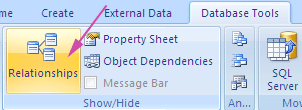
Click on the Relationships button of the Database Tools ribbon.
This exposes the Database Diagram.
Primary Key
One or more fields whose value or values uniquely identify each record in a table. In a relationship, a primary key is used to refer to specific records in one table from another table. A primary key is called a foreign key when it is referred to from another table.

Foreign Key
One or more table fields that refer to the primary key field or fields in another table. A foreign key indicates how the tables are related - the data in the foreign key and primary key fields must match. For example, the Products table in the Northwind sample database contains the foreign key SupplierID, which refers to the SupplierID primary key of the Suppliers table. Using this relationship, the Products table displays a supplier name from the Suppliers table for each product.
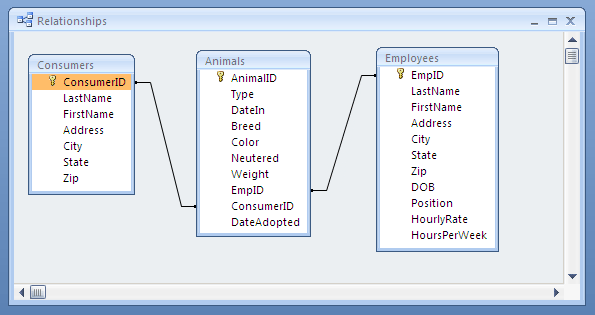
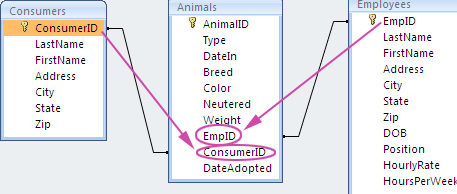
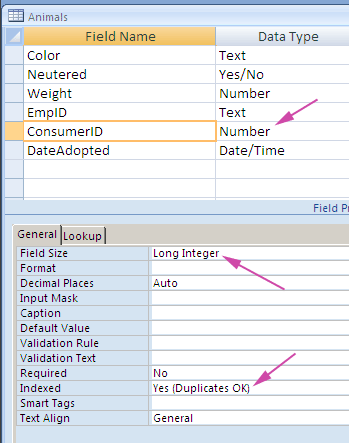
In the example below, EmpID is a primary key in the Employees table and a foreign key in the Animals table. ConsumerID is a primary key in the Consumers table and a foreign key in the Animals table.
Relationship
An association established between common fields (columns) in two tables.
One-to-Many Relationship
A one-to-many relationship is the most common type of relationship. In a one-to-many relationship, a record in Table A can have many matching records in Table B, but a record in Table B has only one matching record in Table A.
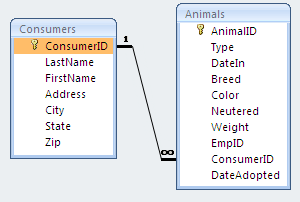
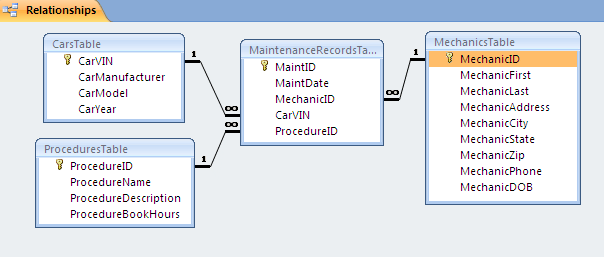
Database diagrams represent a one-to-many relationship with a "1" by the table containing the primary key and an ∞ (infinity) symbol by the table containing the foreign key. (You need to force referential integrity to see the one-to-many symbols.)
5.2 Design Steps
1. Determine the purpose of the database
2. Group the data you want to track (determine the tables)
3. List the attributes you want to track for each group (determine the fields)
- separate attributes to the smallest logical parts
- fields related to subject of the table
- no calculated fields4. Create or determine a unique value to identify each record in the table (primary key)
5. Determine the relationship(s) between the tables
- set the (primary and foreign keys)
- establish the relationships (one to many relationship)
5.3 Creating Relationships and the Relationships Window
- create tables with a primary and foreign key
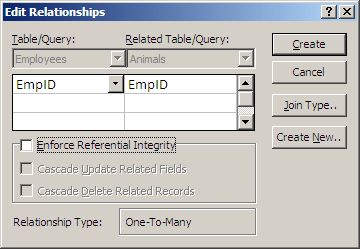
- relate them in the Relationships window (drag the primary key field from one table, drop it over the foreign key in the related table. The Edit Relationships dialog box appears.
5.4 More About the AutoNumber Data Type
AutoNumber in the table containing the primary key:
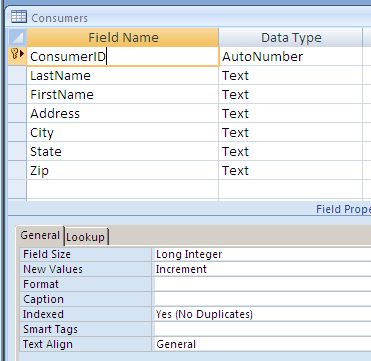
Long Integer in the related table conatining the foreign key:
5.5 Applying Design Steps to Sample Databases with Simple Relationships
Samples of databases that illustrate simple relationships -
Fleet Maintenance Database:
5.6 Combo Boxes, Part 2
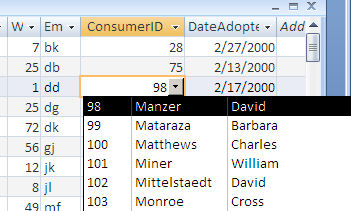
You can use a drop-down box to display data from another table. For example, when a consumer adopts an animal you would need to enter that consumer's ID into the Animals table. You could either memorize the consumer's ID or have Access show you a drop-down box to choose the consumer.
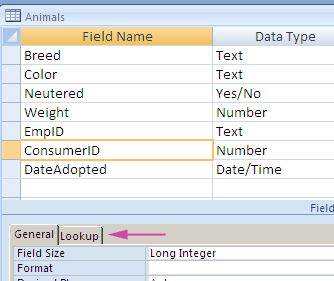
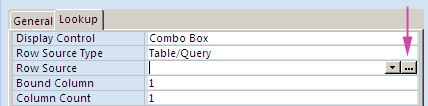
In the Animals table there is a field named ConsumerID - this is the ID of the consumer that adopted the animal. Click on the Lookup tab in the Field Properties area of the table design grid.
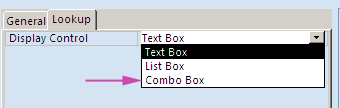
Choose Combo Box for the Display Control property.
Leave Row Source Type as Table/Query (because we will be getting the information for the ConsumerID field in the Animals table from a table - the Consumers table). Click on the ellipses button in the Row Source property.
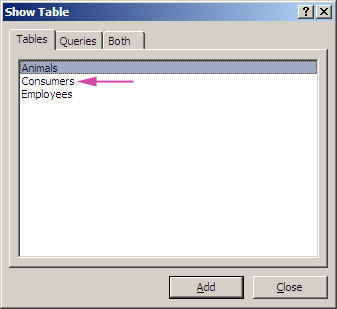
This displays the Show Table dialog box. The information we need to display in the Animals table comes from the Consumers table - so double click on the Consumers table to add it. Click the Close button to hide the dialog box.
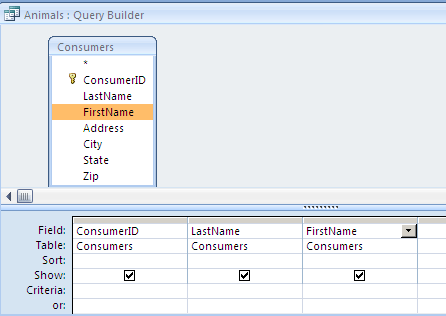
(More about this in the next topic - Topic 6: Using Access Queries). You are looking at the Query Builder. The tables display in the upper section and the fields you select appear in the lower section.
For the Animals table, we need to use the ConsumerID and we want to be able to see the consumer's last and first names. Double click on these fields, in that order, to add them to the bottom section of the Query Builder.
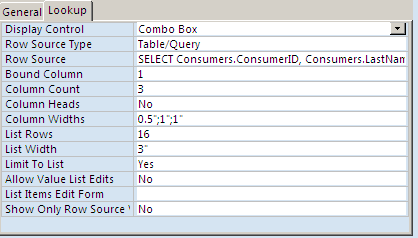
Close the Query Builder to go back to the Field Properties section of the Animals table. Save the query changes when prompted. Set these other properties:
Bound Column - 1 (This is the column with the data that goes into the table. In this example it is the ConsumerID data and in the Query Builder we made it the first column.)
Column Count - 3 (These are the number of columns we added in the Query Builder. In this example it's 3 - ConsumerID, LastName, FirstName.)
Column Heads - No (Displays labels on top of the columns.)
Column Widths - 0.5";1";1" (These are the widths of the 3 columns we created in the Query Builder. Note - it takes some trial and error to get the measurements correct.)
List Width - 3" (This sets the width of the drop-down box. It also takes some trial and error to get right.)
Limit to List- Yes (Yes means that the user can only choose an entry in the list - they can't add one that's not there.)
Swith the table to datasheet view and save the changes. Observe the drop-down box for ConsumerID.
5.7 More Complex Relationships
- many-to-many relationships - using junction tables
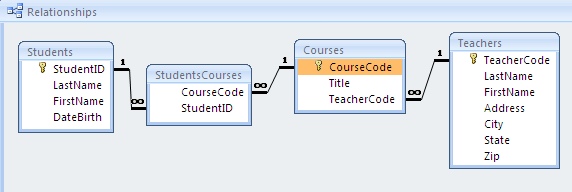
- students courses classic example
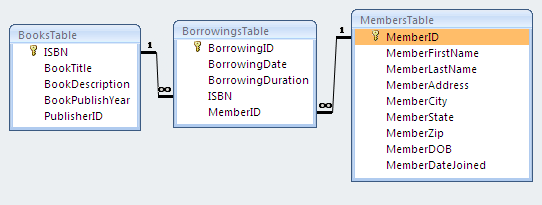
- library borrowings classic example